How to Submit an Item for Authentication
Ready to authenticate an item? You can submit your order directly through the LegitGrails app. You'll select your brand, choose your turnaround time, upload photos, and submit your order for review.
Step 1: Start an order
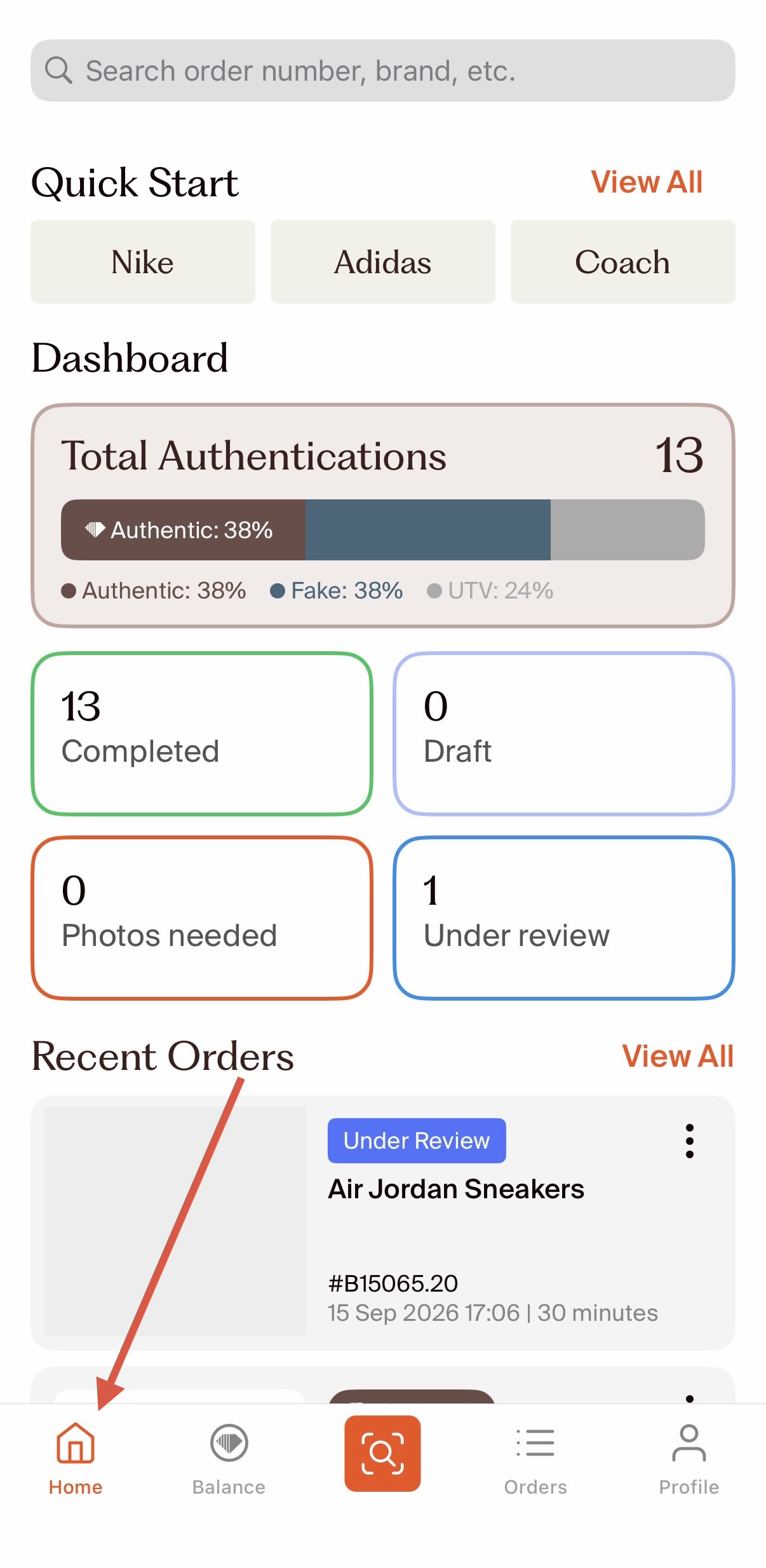
From the Home screen, tap the orange authentication icon at the bottom of the screen to start a new order.
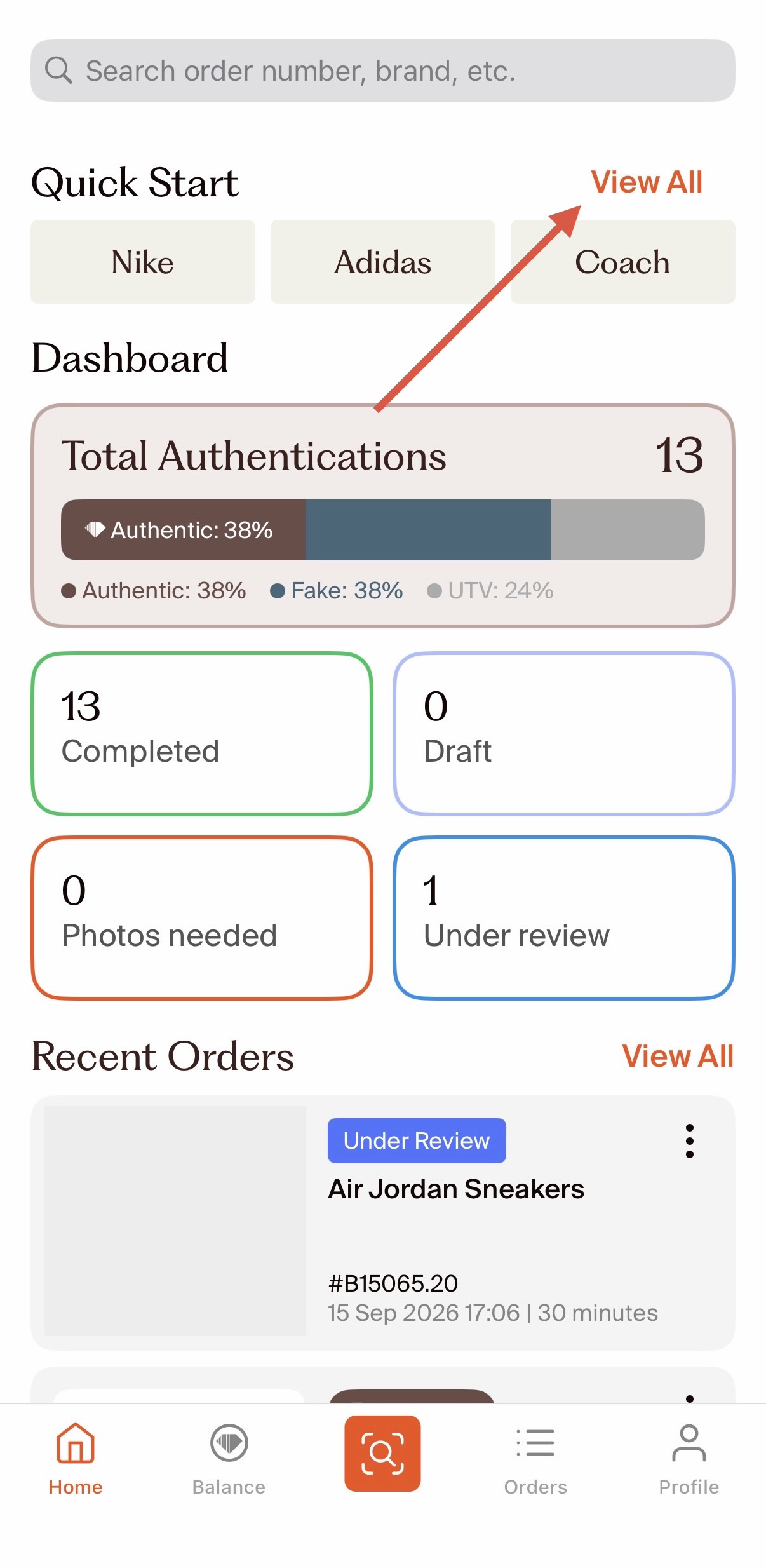
You can also begin by clicking "View all" at the top of the screen.
Step 2: Tell us about your item
You'll be asked to provide some basic information about the item you're submitting.
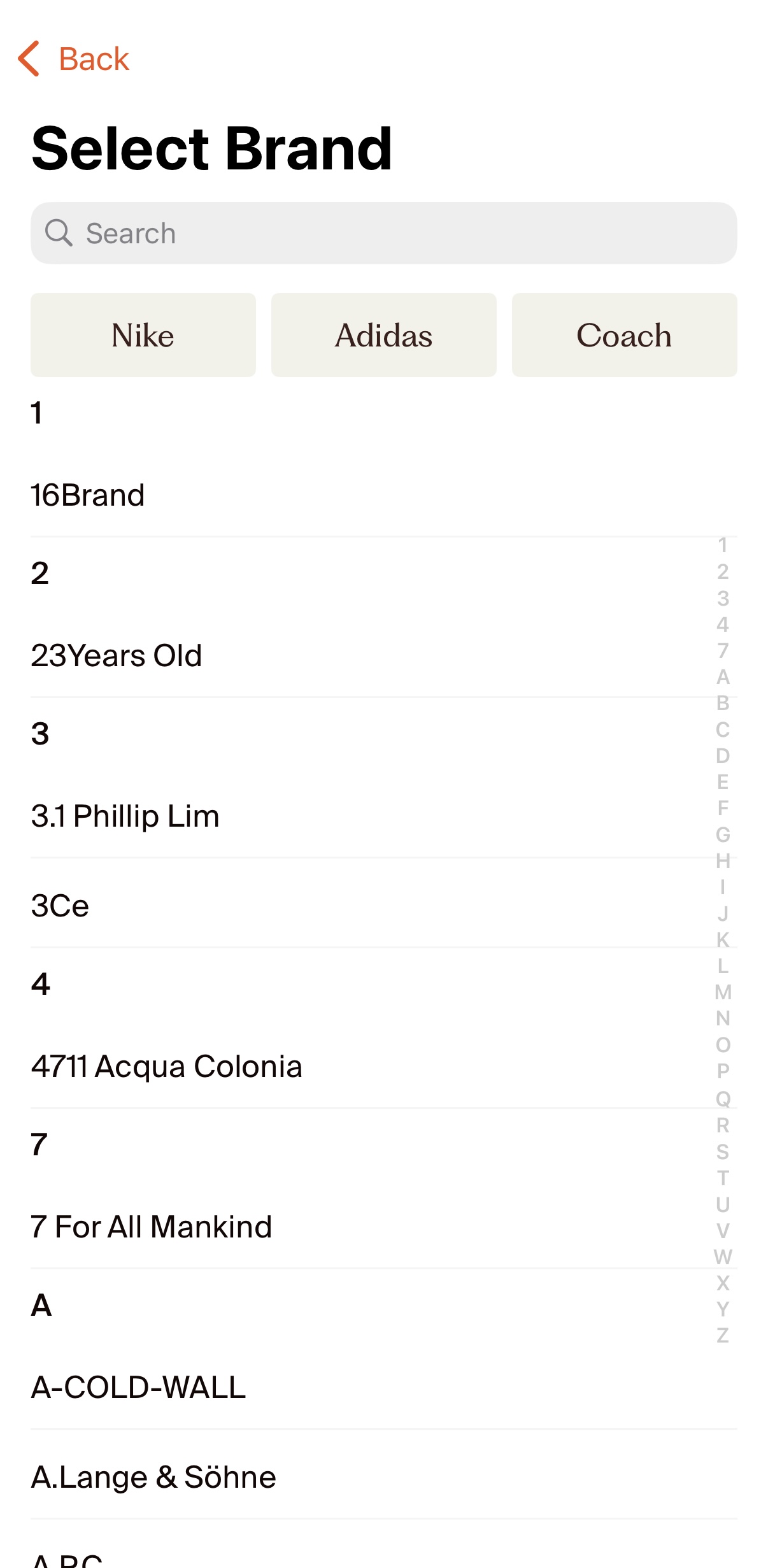
Select the brand: Choose the item's brand from the list, or use the search bar to find it quickly.
Select the category: Choose the category that best describes your item, such as:
Bags
Shoes
Jewelry
And other supported categories
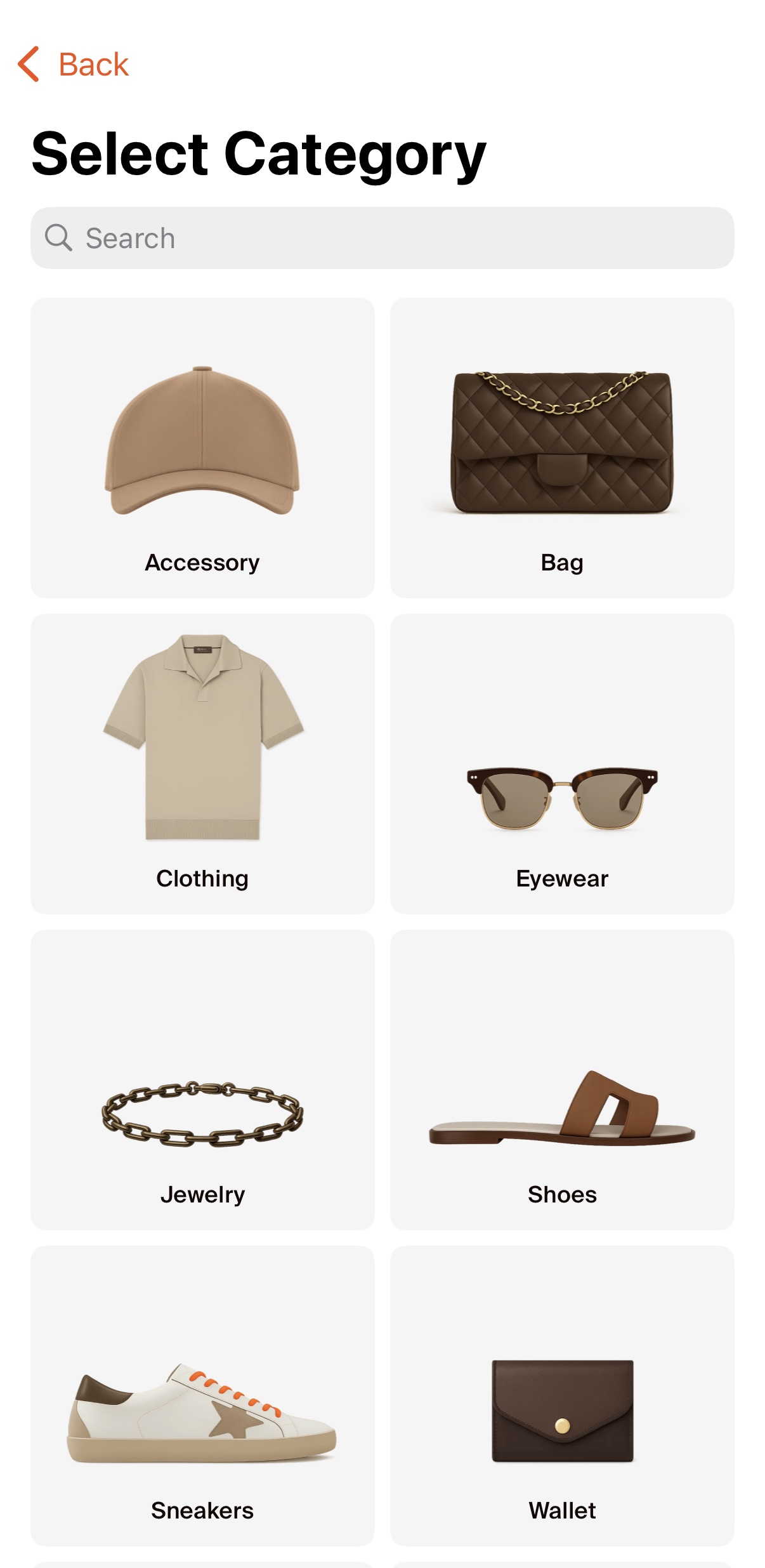
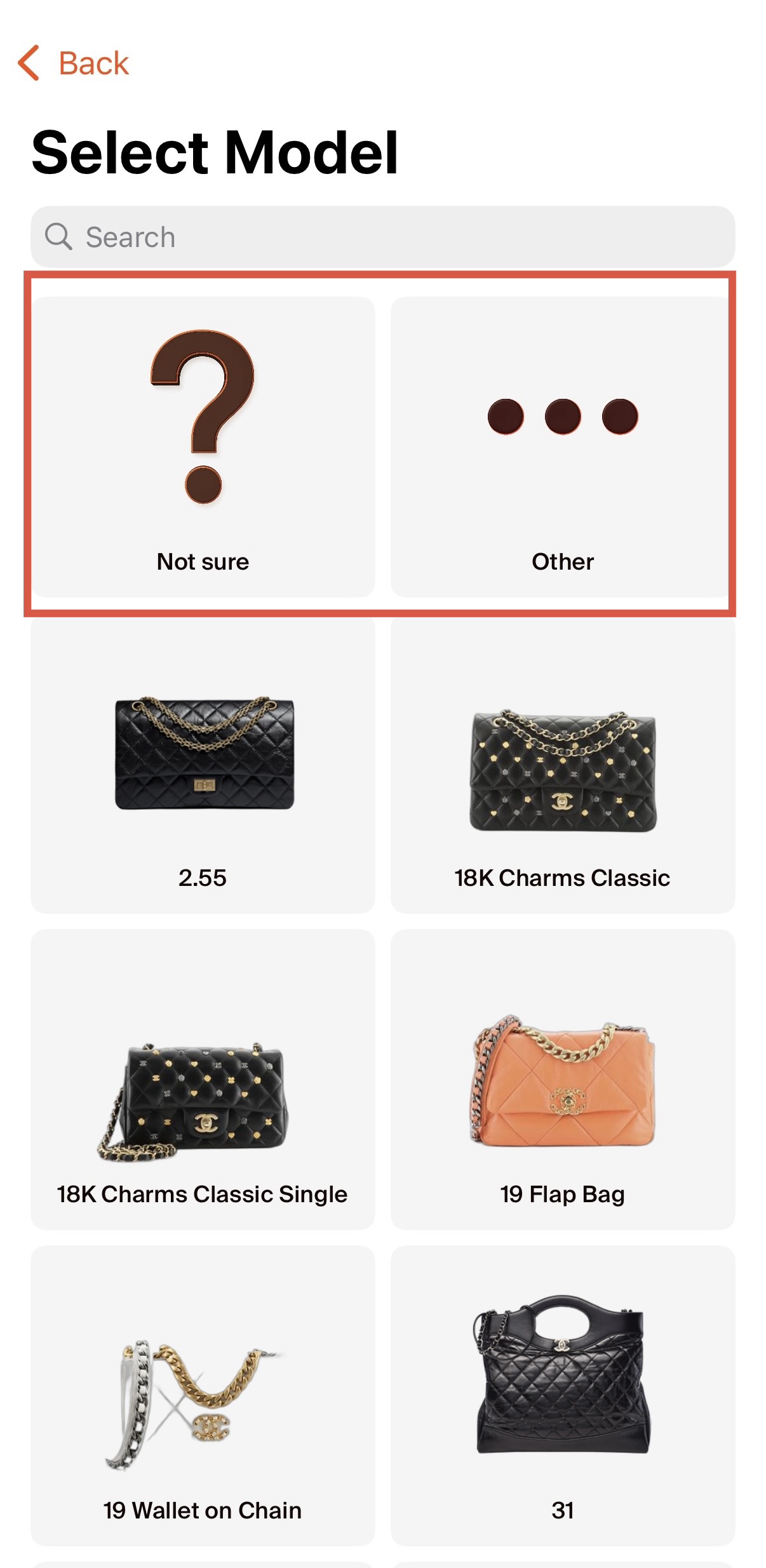
Select the model: If you know the model, select it from the available options.
If you can't find your model:
Select Other Model and enter the model name if you know it.
Alternatively, you can skip the model selection, and our authenticators can identify the model from the photos you provide (this doesn't apply to all brands).
Step 3: Add a SKU (optional)
If you're using a business account and have a SKU(stock keeping unit) for the item, you can enter it here.
This field is optional.
Step 4: Choose your turnaround time
Select the turnaround time you need for your authentication.
Available options include:
15 minutes (Available for a limited number of brands from 11:00 am - 11: 00 pm(UTC +8)
30 minutes
2 hours
6 hours
12 hours
The price of your authentication depends on the turnaround time you select.
Step 5: Upload your photos
Your photos are one of the most important parts of the authentication process. Our authenticators use the details visible in your photos to assess the item's authenticity, so providing clear and complete images can help us give you the most accurate result possible.
Photo requirements
When uploading your photos:
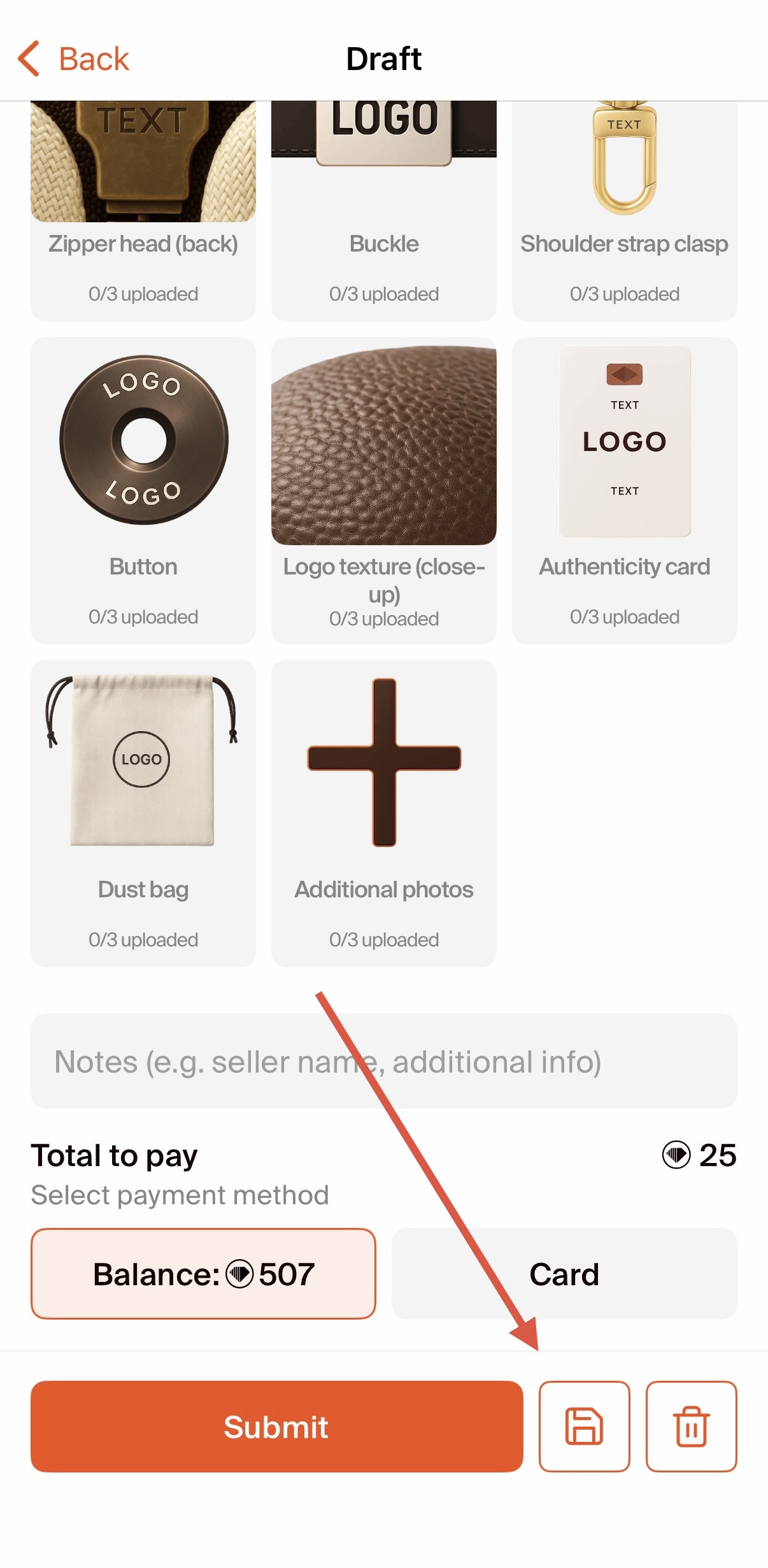
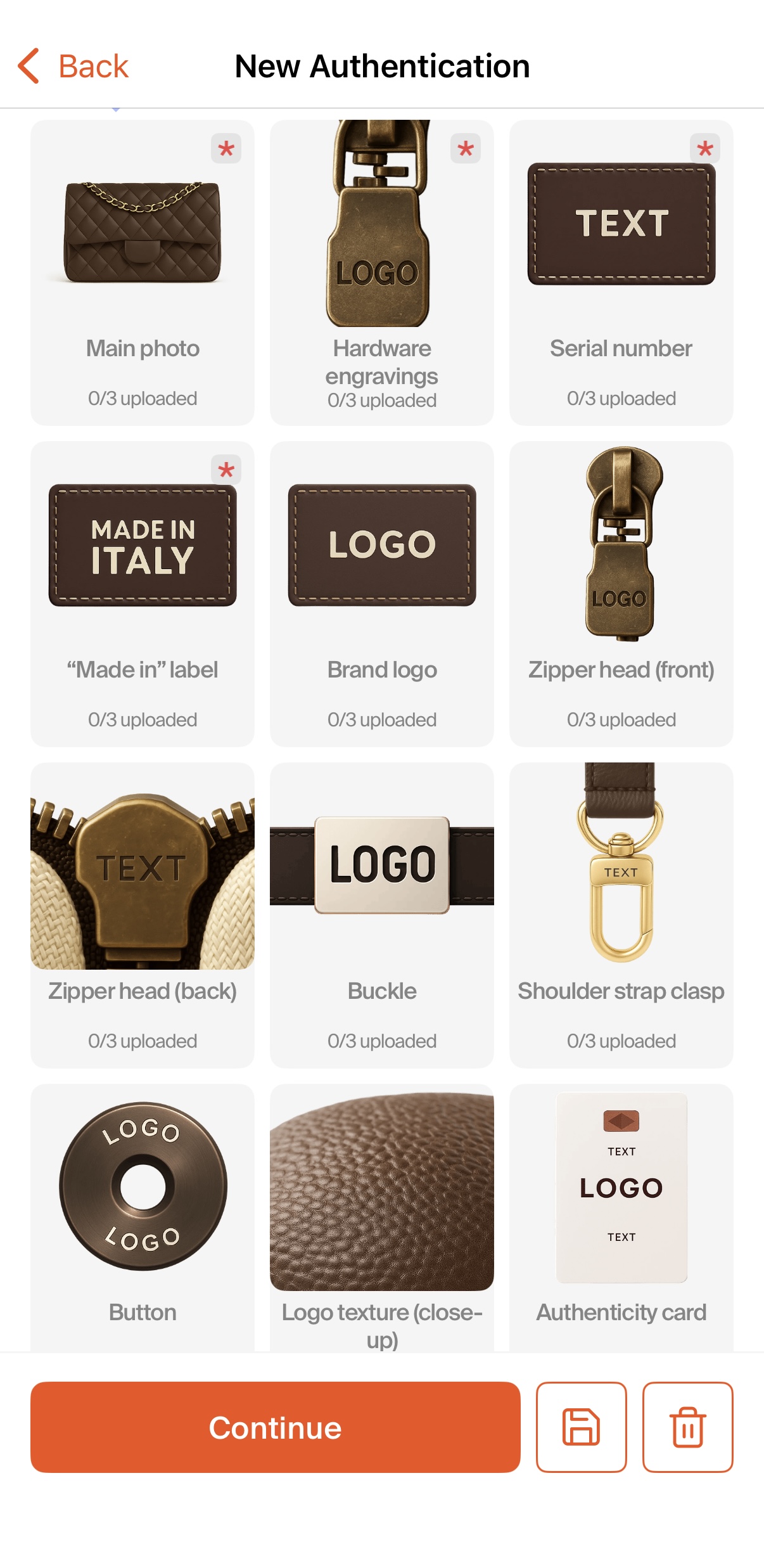
Each photo category can contain up to 3 photos.
Fields marked with a red * are mandatory
Photos should be clear, well-lit, upright, and in focus.
Upload high-resolution images where possible.
Supported file formats include JPEG, PNG, and HEIC.
Each file can be up to a maximum of 10 MB.
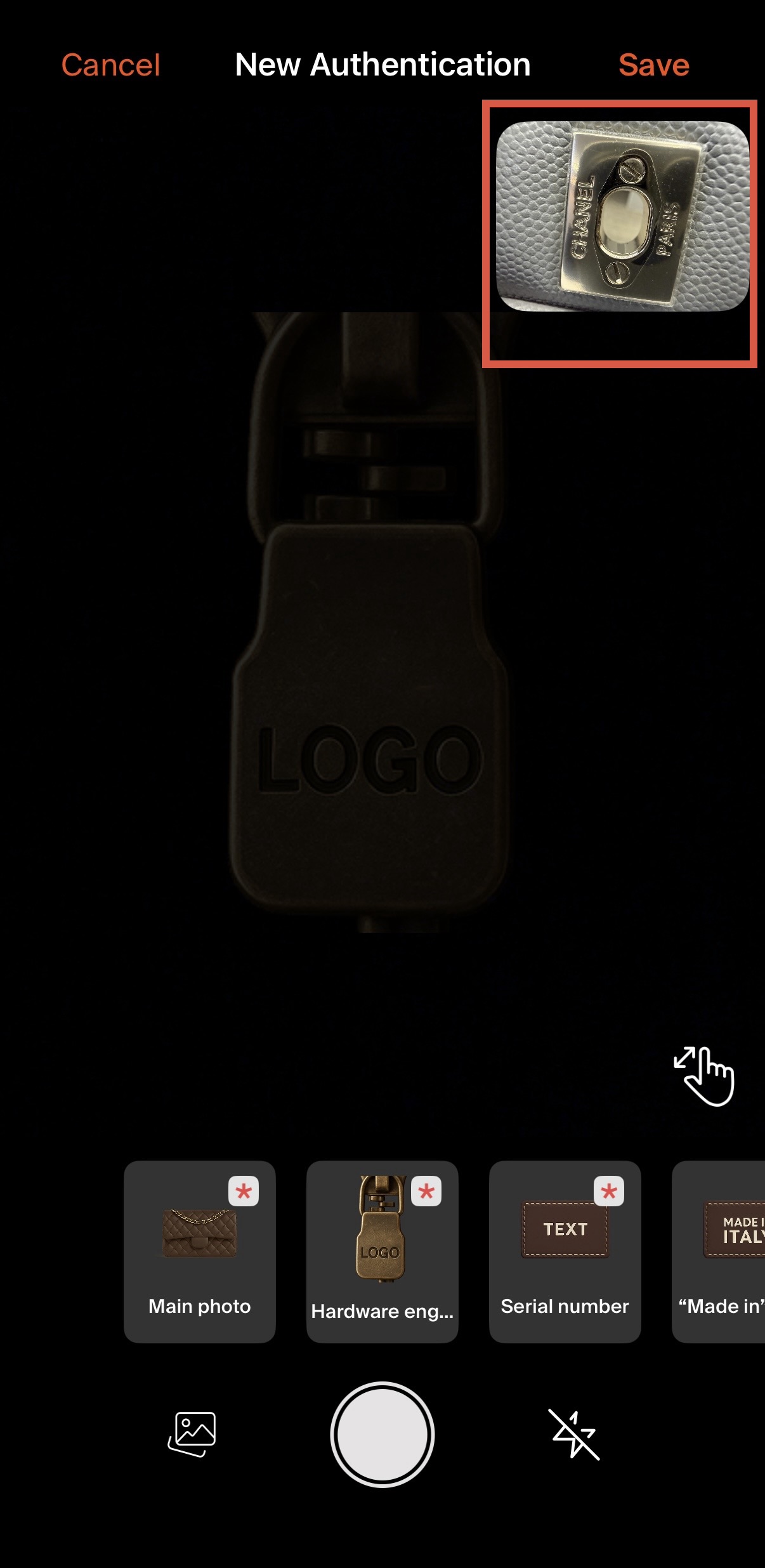
You can take photos directly through the app or select existing photos from your gallery.
If you have an additional photo that doesn't fit into one of the listed categories, upload it under Additional Photos.
Tip: Before submitting, review each photo category to make sure you've provided all the details requested. If a category allows multiple photos, use them to show the item from different angles or provide clearer views of important details.
You can return to any photo category before submitting your order to add, replace, or update your photos. Each category shows an example of what is needed at the top right side of the screen.
Step 6:Add notes (optional)
You can add notes to give our authenticators additional context about your item.
For example, you can mention:
Where the item was purchased
Information provided by the seller
A specific detail you're concerned about
Anything else you think may be useful during the authentication
Don't worry if you don't have anything to add; this section is optional.
Step 7: Submit your order or save it as a draft
Once you've completed the required information and uploaded your photos, you have two options:
Submit
Tap Submit to send your order for authentication and proceed with payment.
You can pay using:
Your LegitGrails credit balance
A credit or debit card
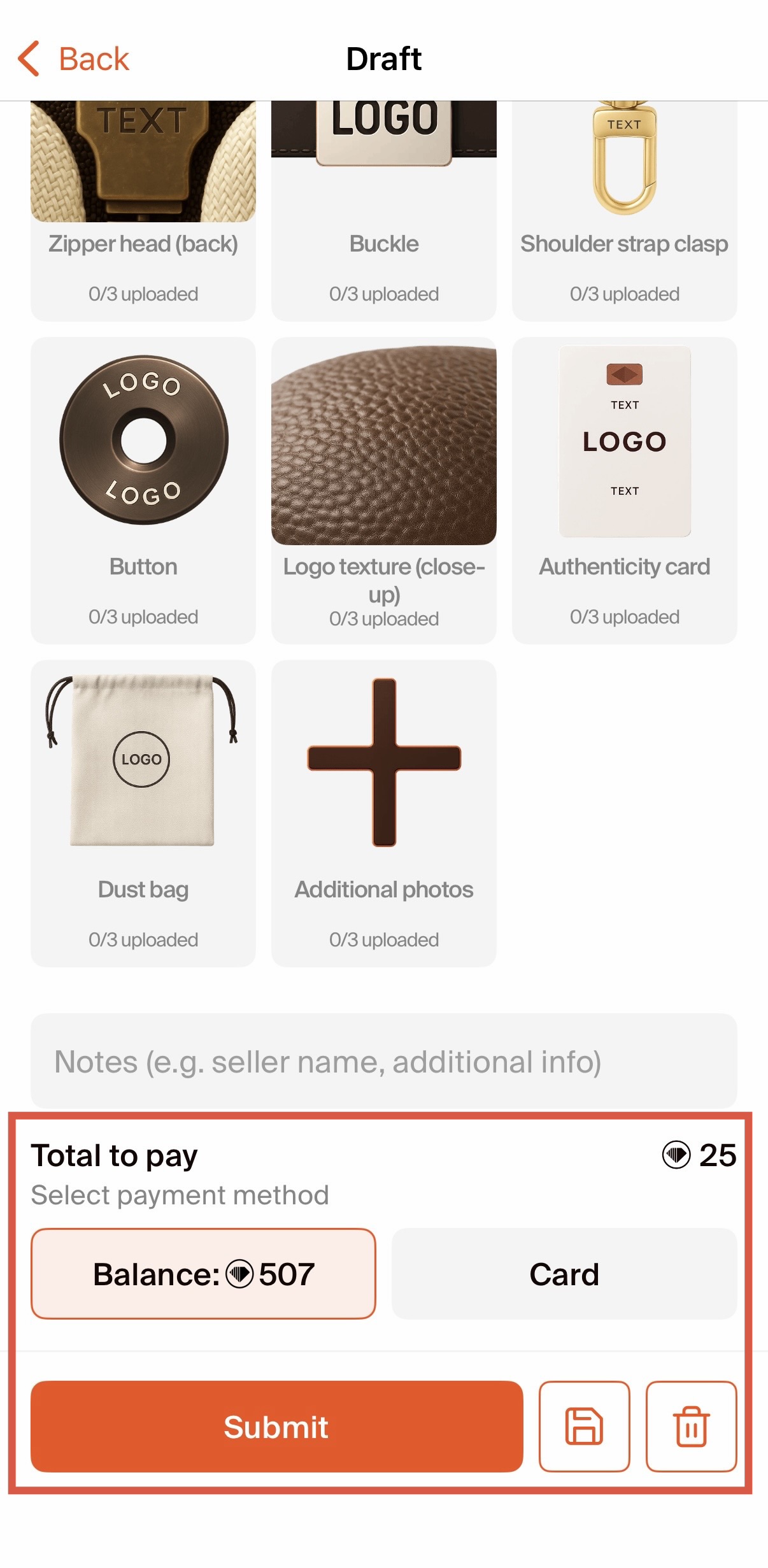
Save Draft
Not ready to submit yet? Tap the draft icon to save your progress and come back later.
No payment is taken when you save an order as a draft. You can return to the draft from your orders and complete it when you're ready.
Before submitting, you can go back to any photo category to add or update your images.