Certificates in your account
What is a Certificate?
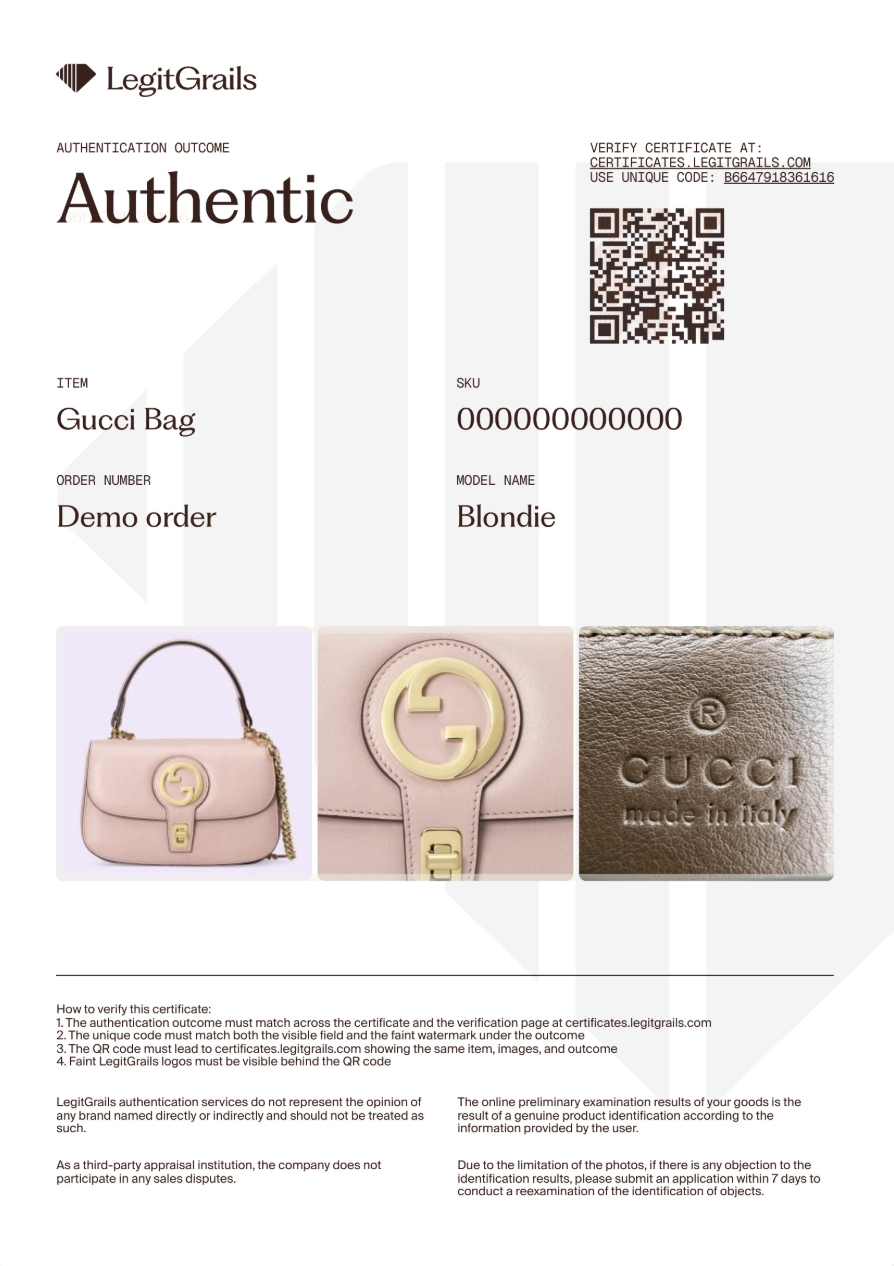
After our team of authenticators completes the evaluation of your item, you will be notified of the verdict via email, and the result will be visible on your dashboard after you log in. For "Fake" and "Authentic" outcomes, you will receive a LegitGrails authenticity certificate. A file that contains the main information about the submitted item and our verdict.
How to Get a Certificate
Certificates are issued automatically for the outcomes "authentic" & "fake". After the authentication process has been completed, you can proceed to the customization details. Choose carefully, as you will not be able to edit the certificate's appearance after it is generated.
Standard Option: This will give you a certificate in the vertical layout without any logo, similar to the examples provided.
Custom Option: This allows you to choose between the templates you have set up. If you haven't set up a template yet, press the "Add New Templates" button and follow the instructions. This costs 5 LegitGrails Credits.
How to Edit It
Item Type, Model Name, Language & Displayed Photos
After the order is complete, you can adjust the certificate details to your preference
Log in to your account at account.legitgrails.com.
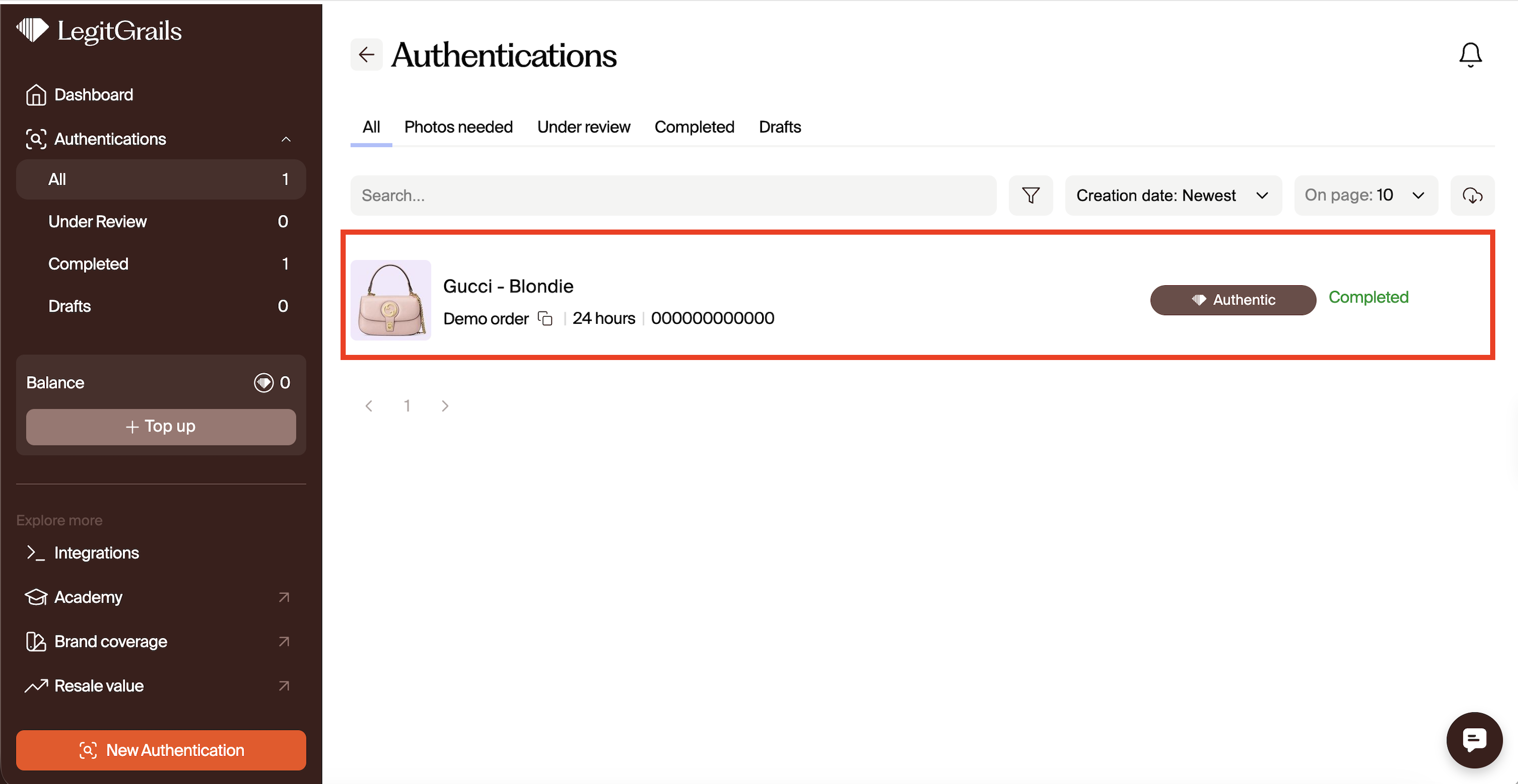
Press the "View all" button to see all your orders; locate the one you'd like to edit and click on that row.

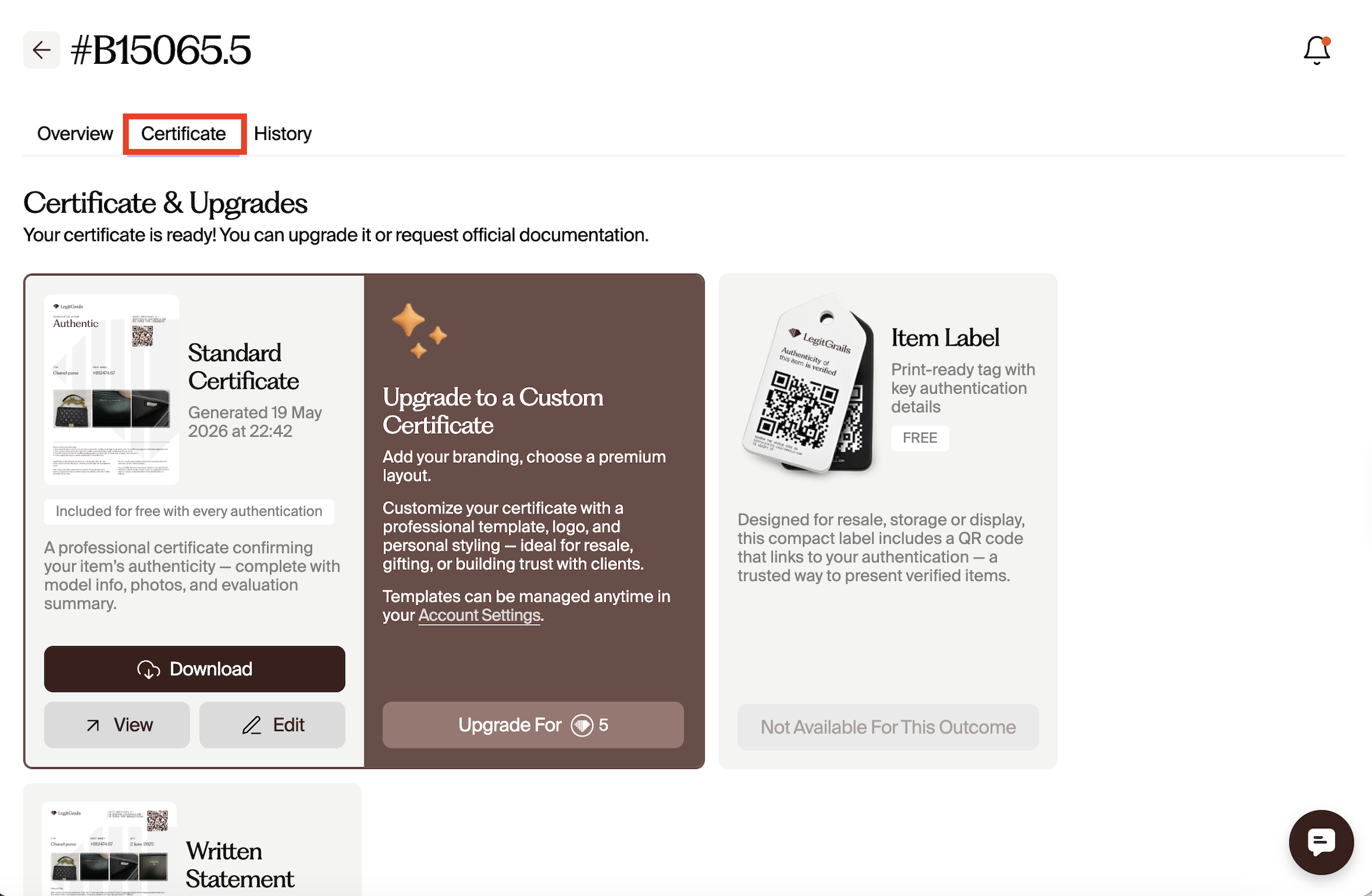
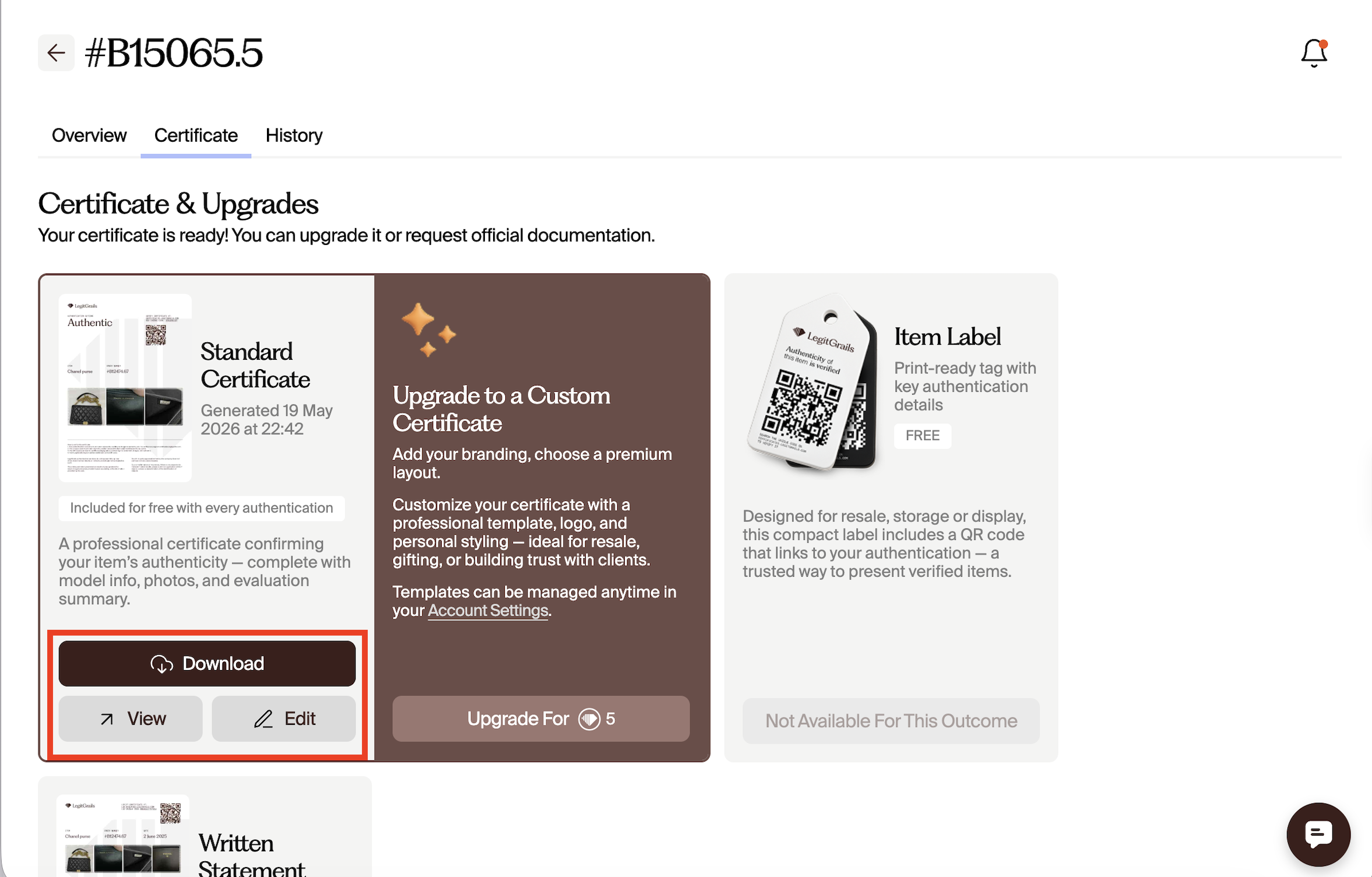
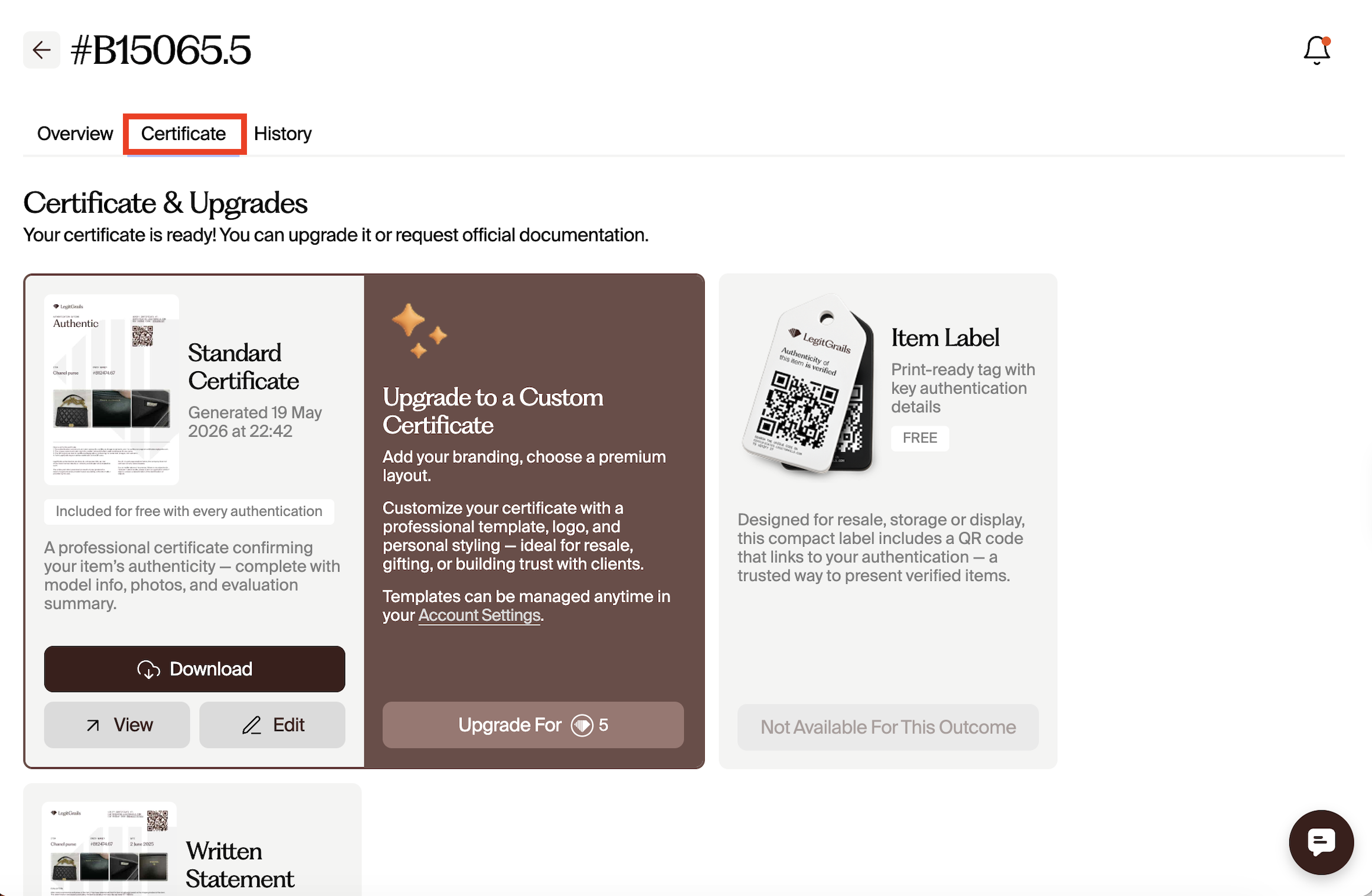
On the newly opened page, move to the certificate section. Click the "Edit" button below to enable you to edit your certificate.
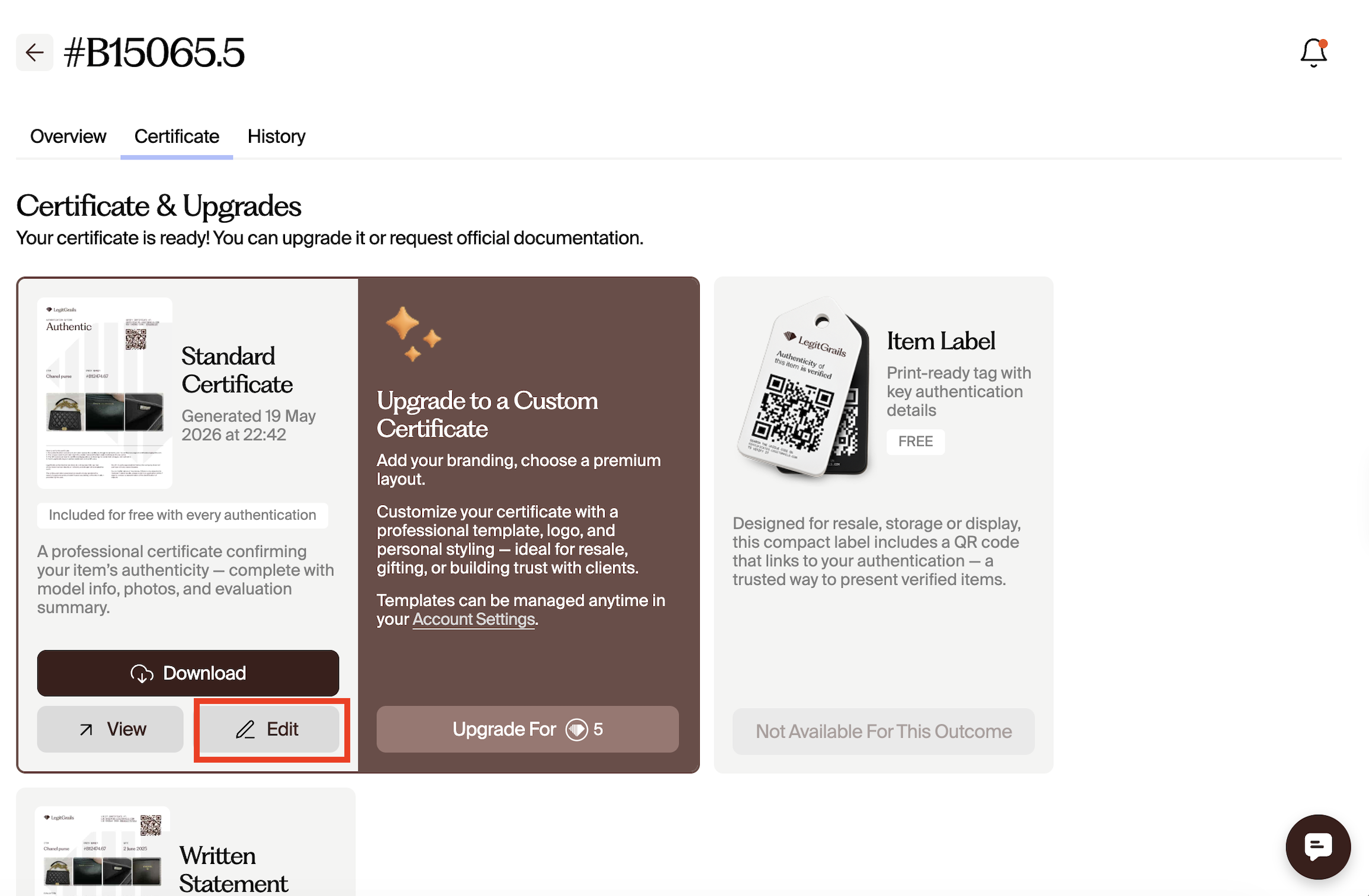
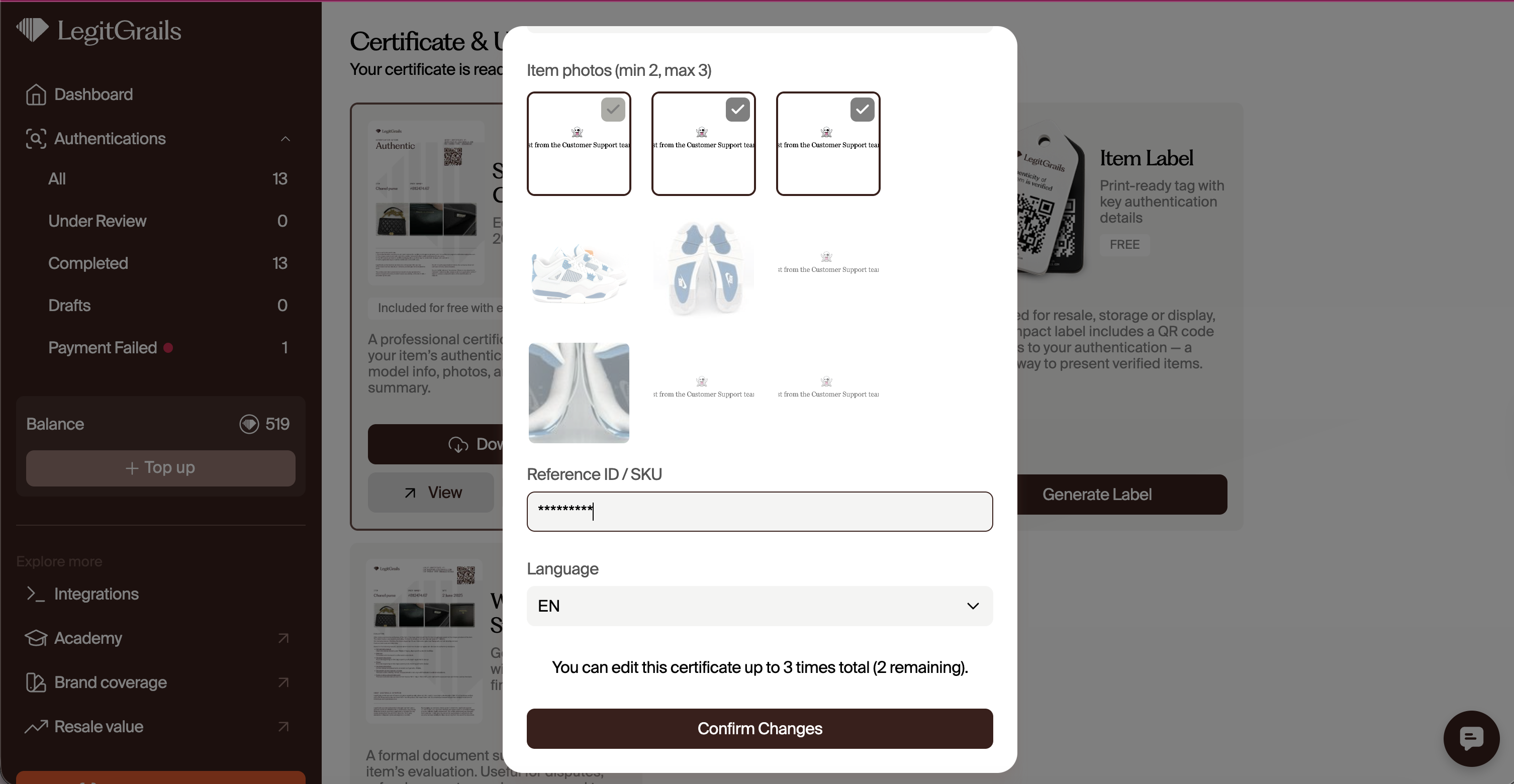
In the "Edit" window, you can change the model name, select the item type, and choose 2 photos you want to display on the certificate. If you only want to change one of the fields, leave the rest as they are.
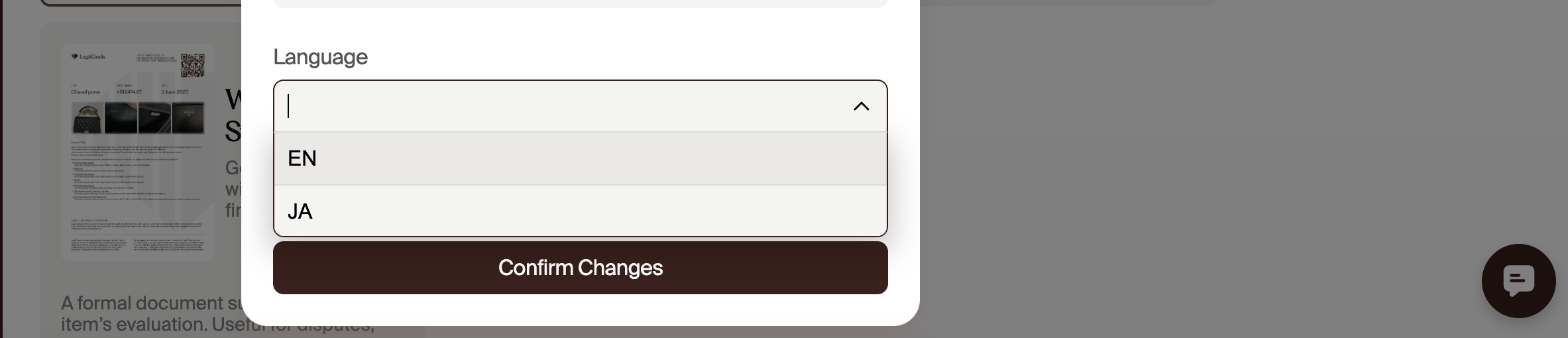
You can also change your certificate language from English to Japanese or Japanese to English.
Note: Certificate editing can be done a maximum of 3 times, so kindly be cautious with all changes.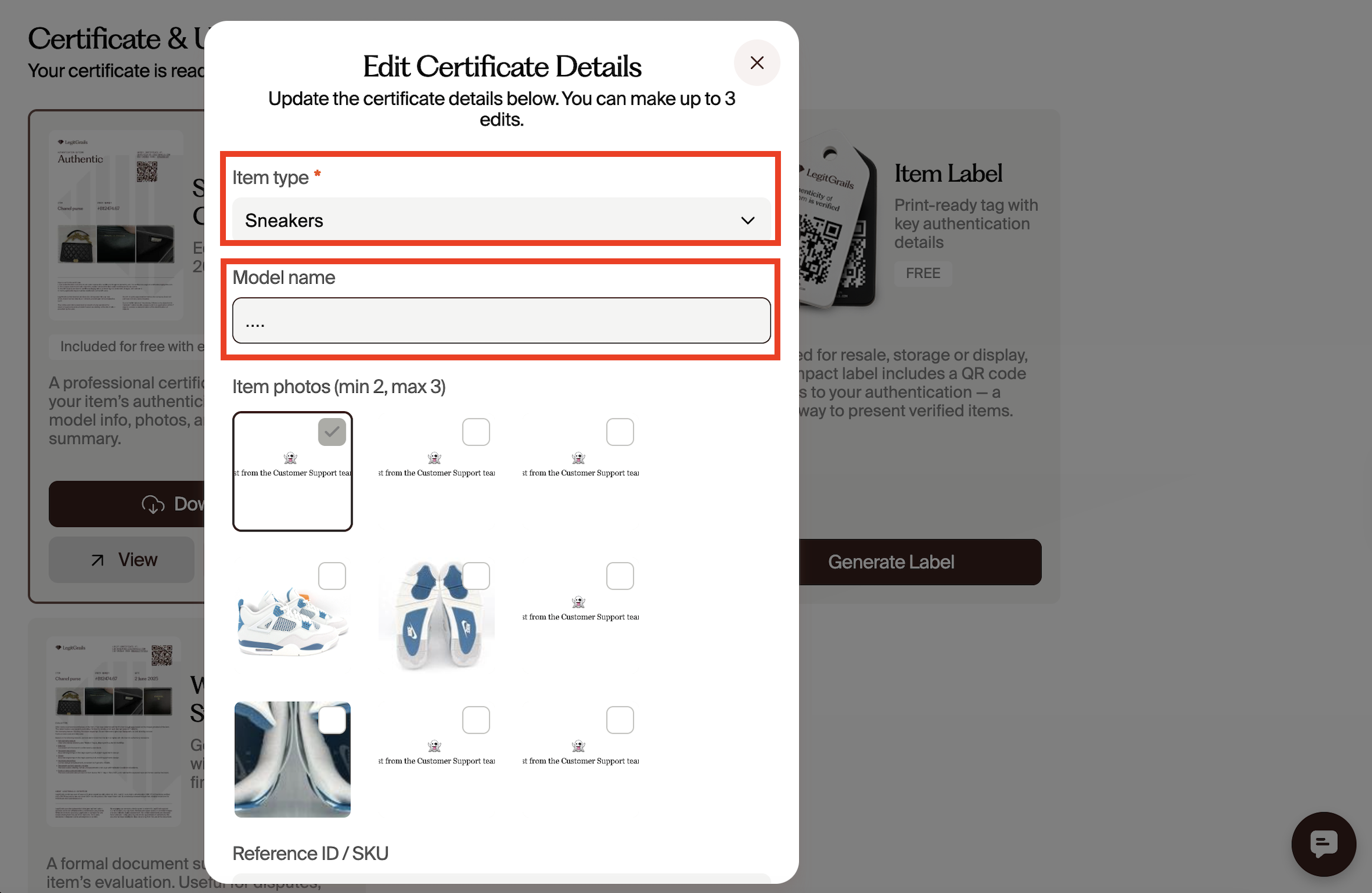
You can also change the certificate language from English to Japanese and vice versa.
After double-checking the new information, press "Save changes" and refresh the page in your browser.

You will then be able to view or download your edited certificate using the appropriate buttons on the page.
Creating a Custom Certificate: Templates, Layout & Your Logo
Custom Certificates let you personalize your authentication certificate by adding your company logo and choosing between Portrait or landscape layout. This is only available for orders with fake or authentic outcomes.
Each Custom Certificate costs 5 LegitGrails Credits, and you can save your preferred design as a template to use for future authentication requests.
Steps to creating a custom certificate:
Open the order and go to the certificate section.
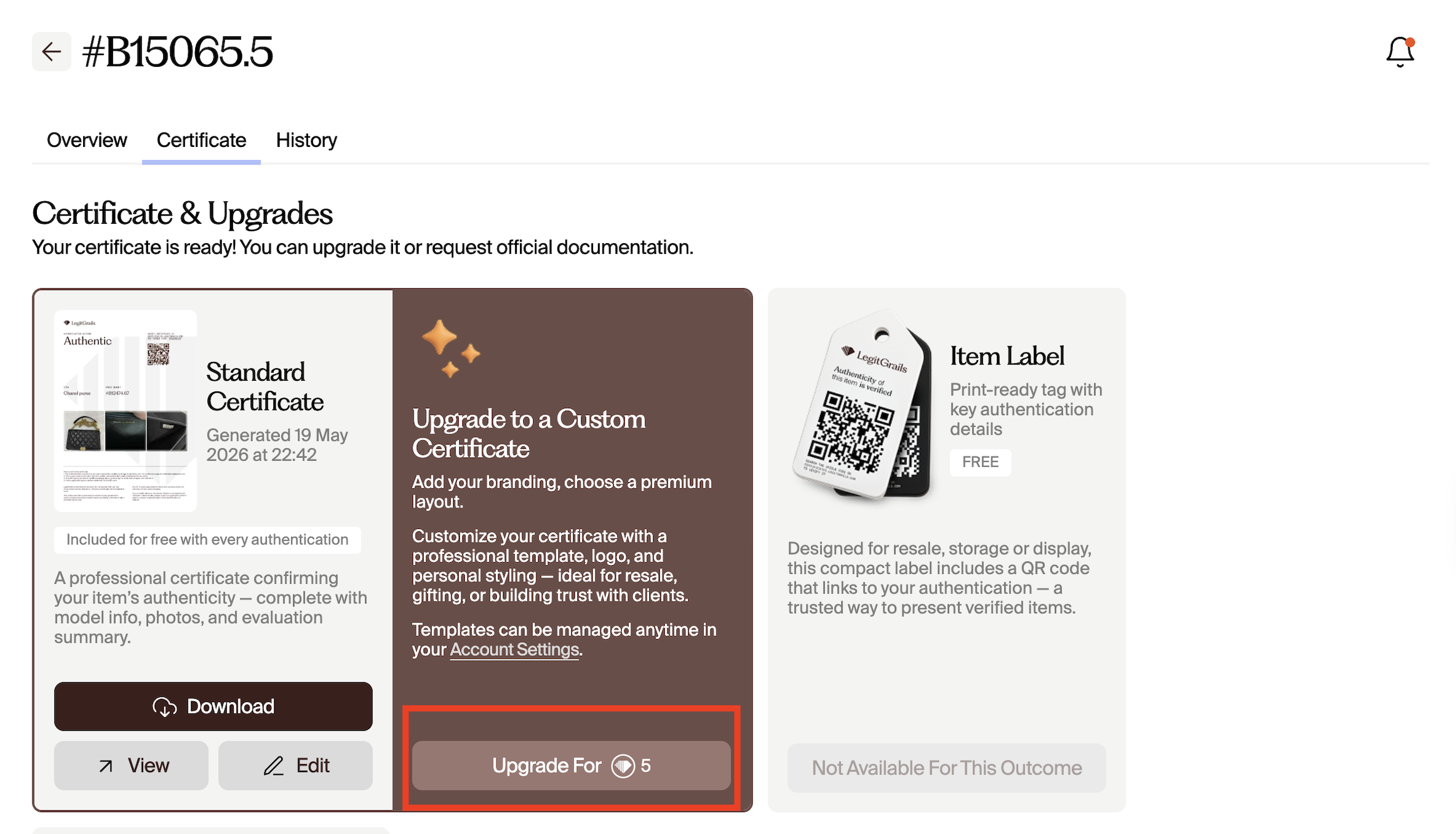
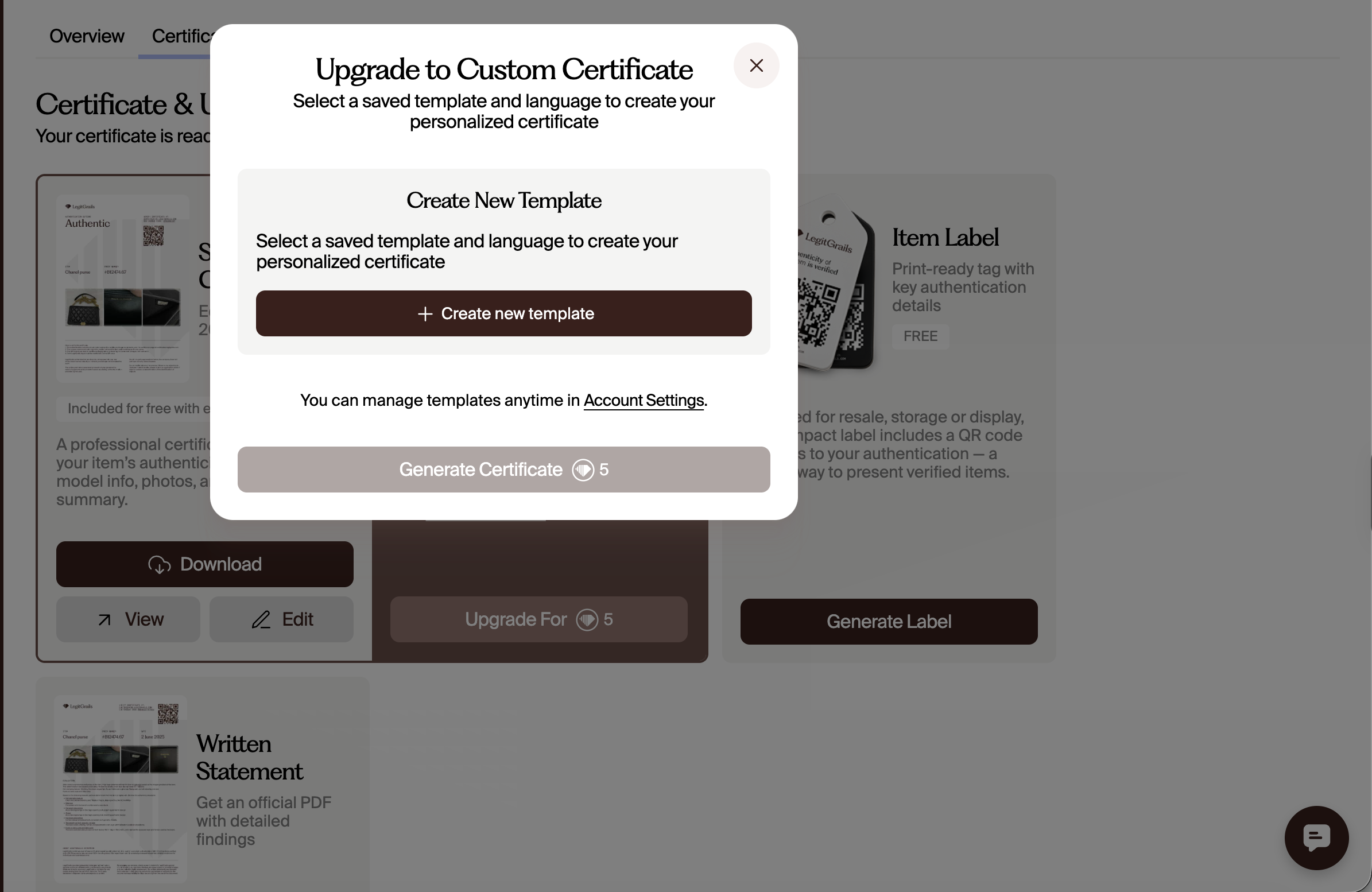
Click "upgrade for 5 credits". If you don't have any template already saved up, you would need to create one.
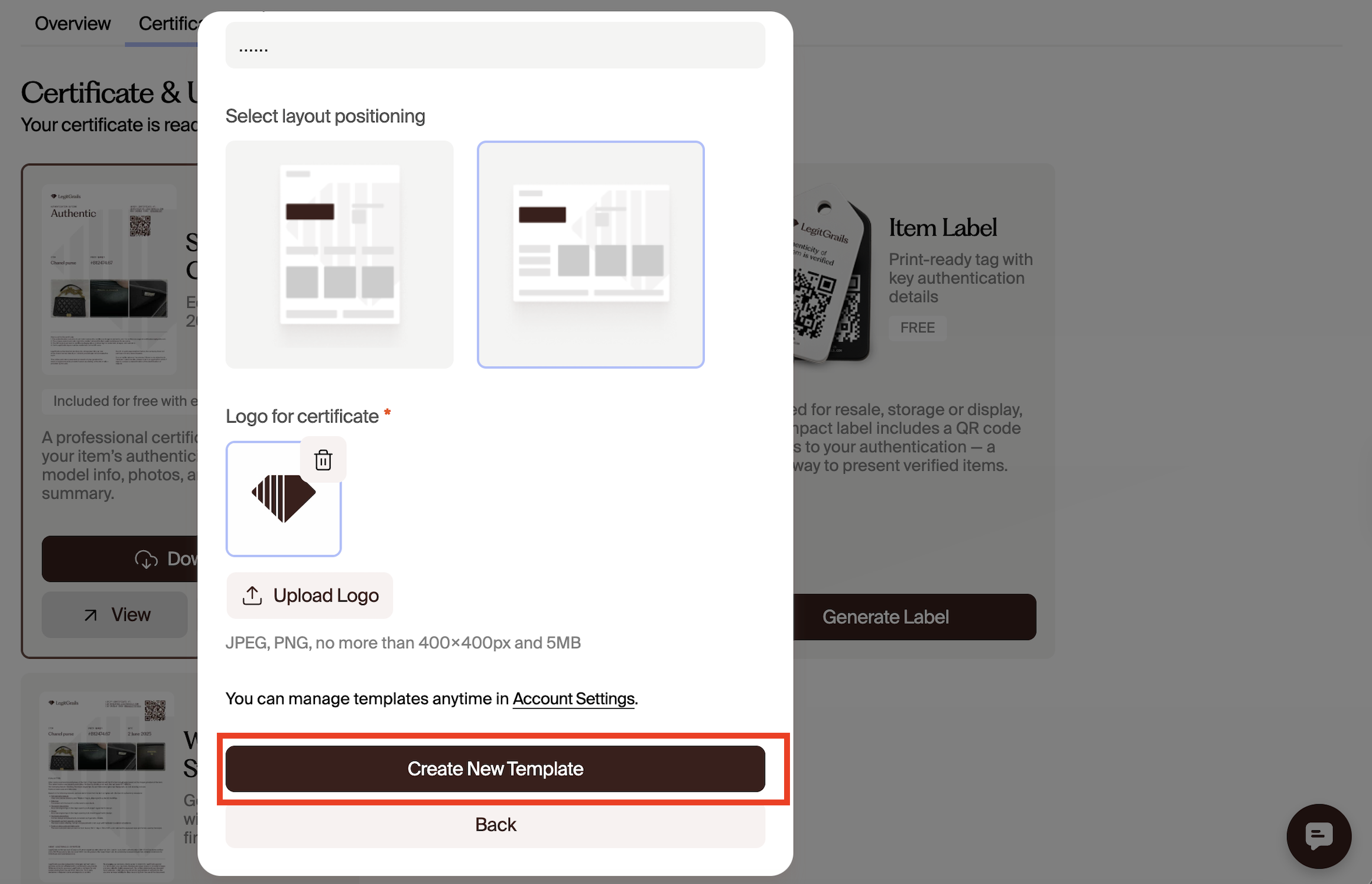
A new window appears for you to create your template.
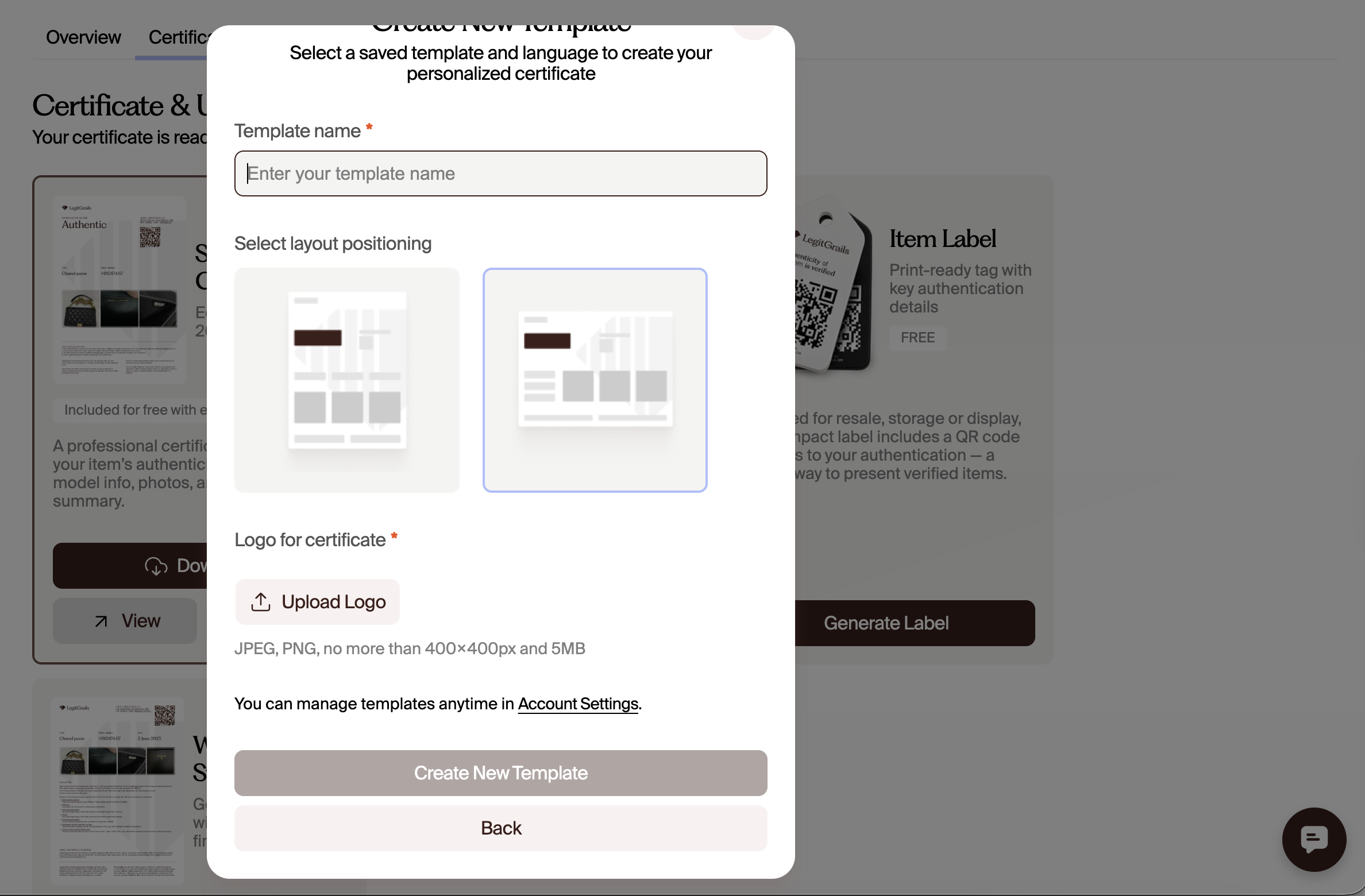
Kindly add a name that helps you identify the template. This field is not visible in the public link to your certificate.
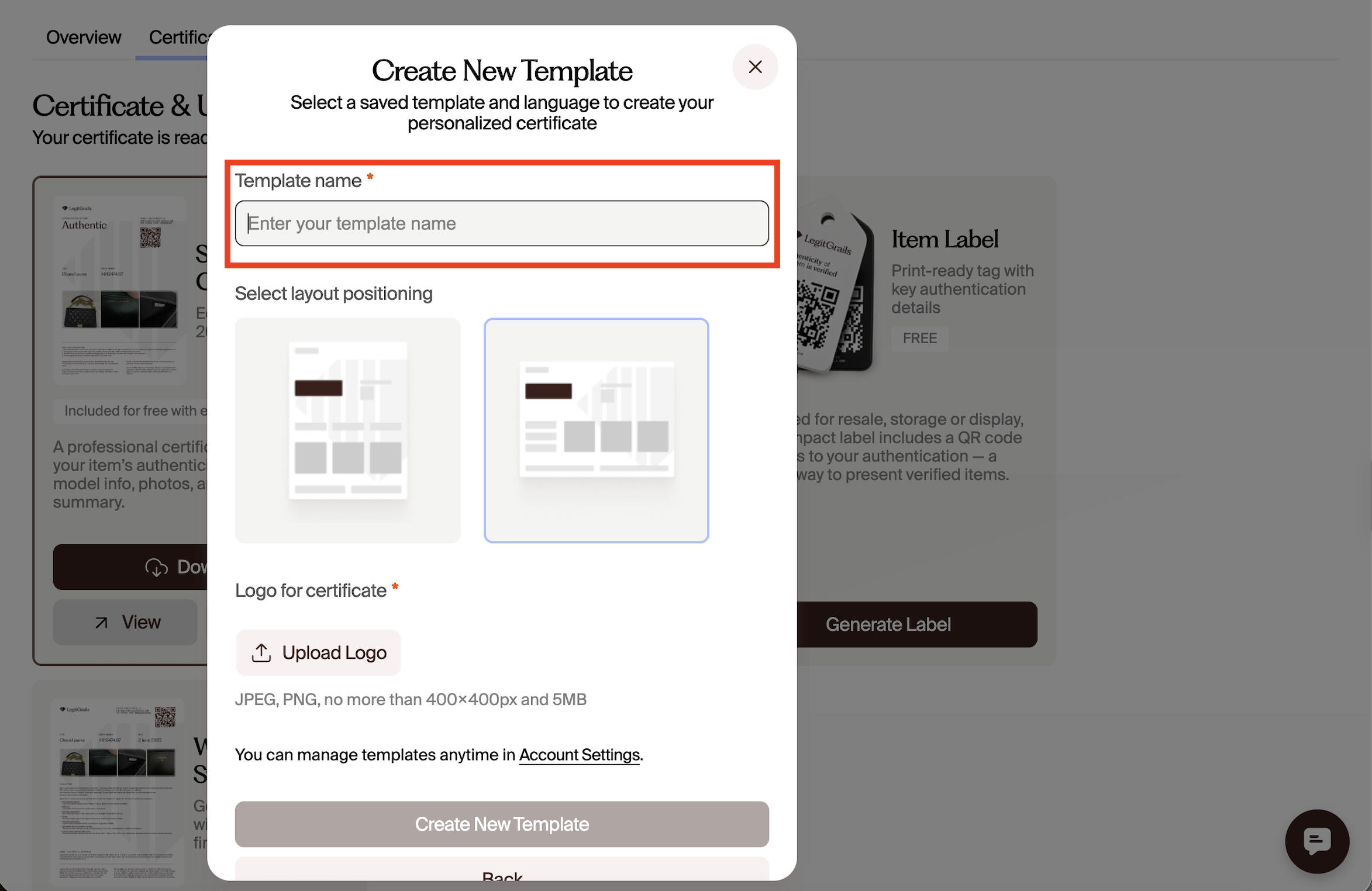
Select your layout positioning: Portrait or landscape.
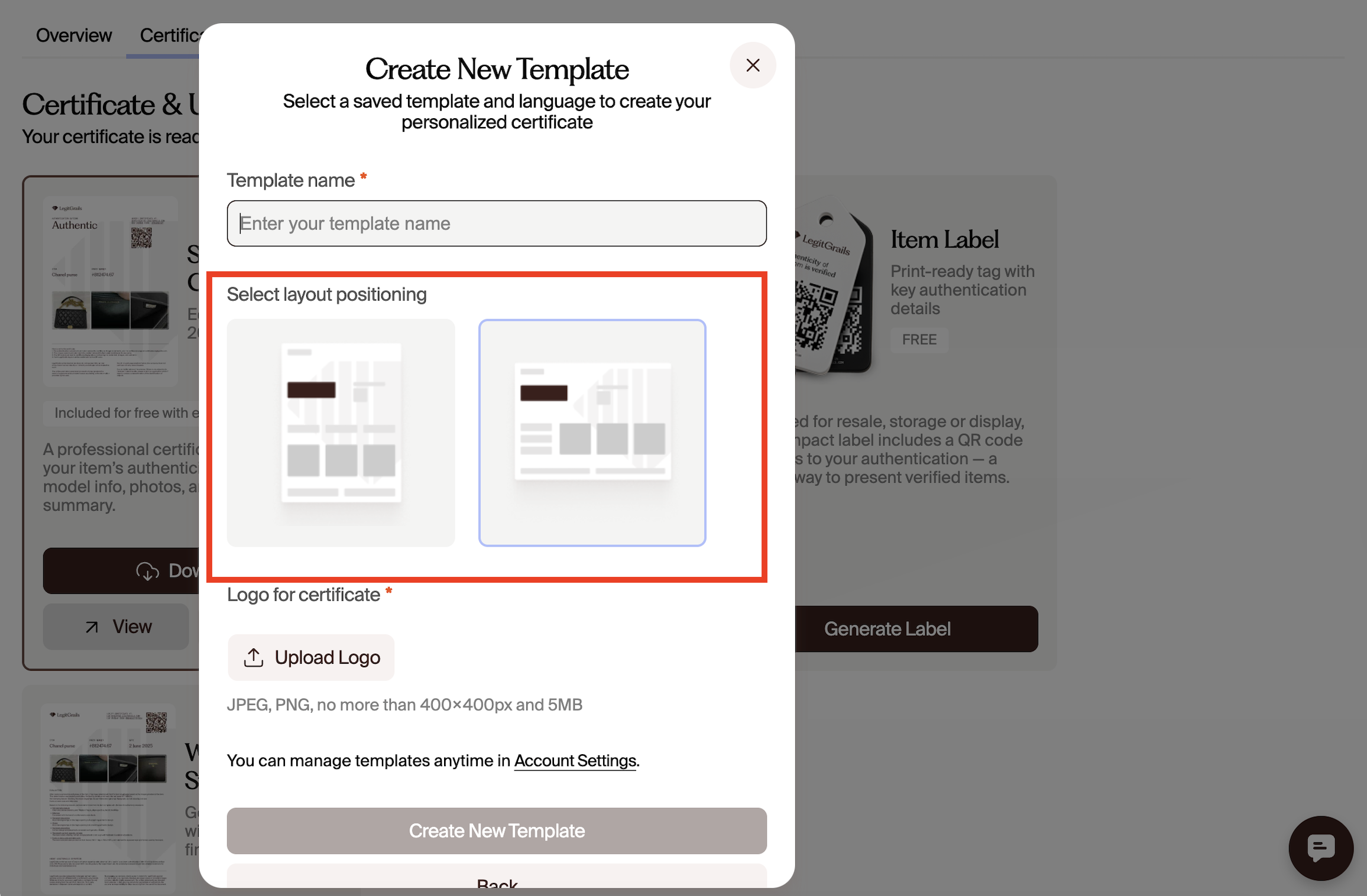
Upload your logo.
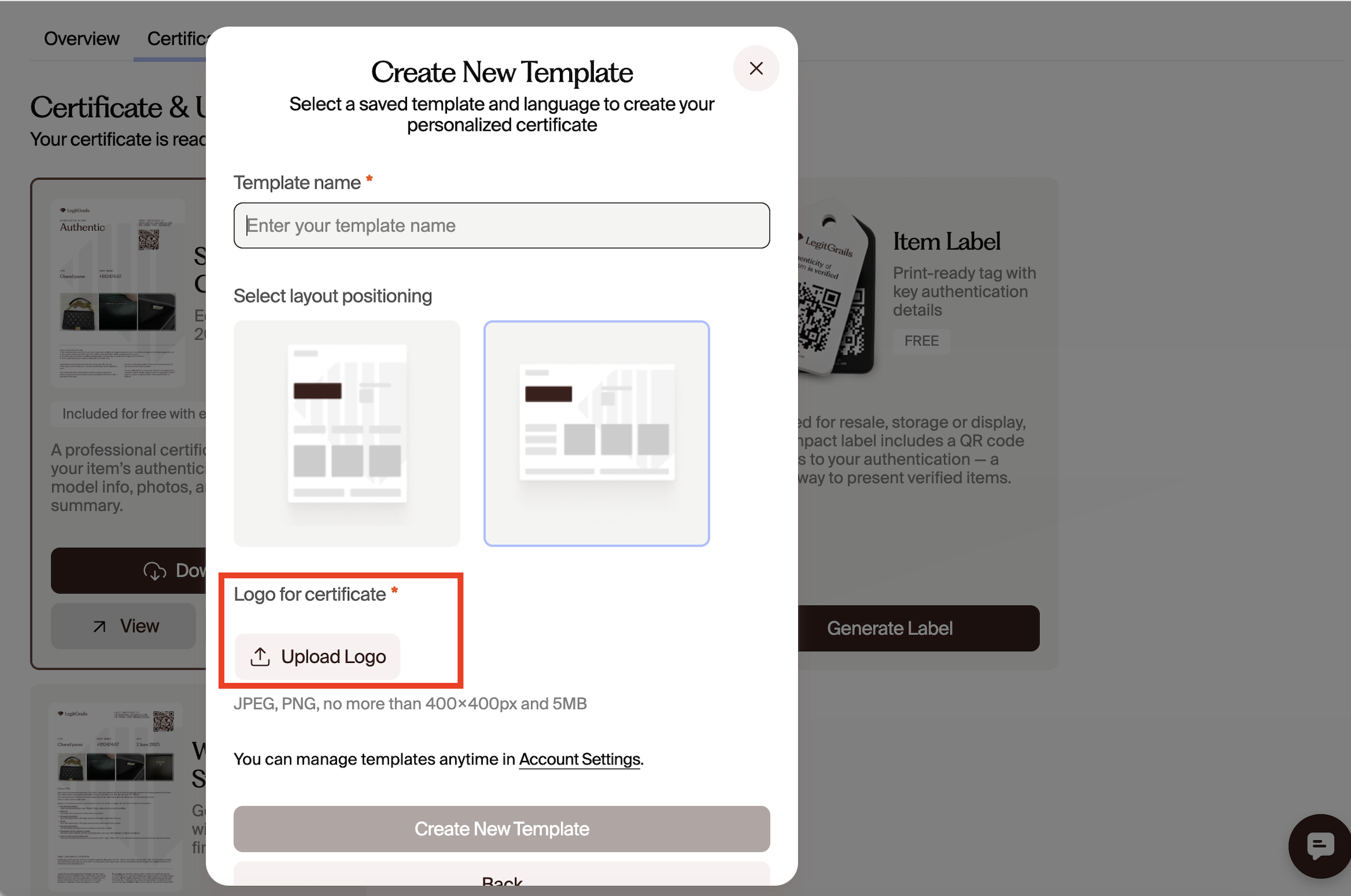
Double-check all details you entered and click "create new template".
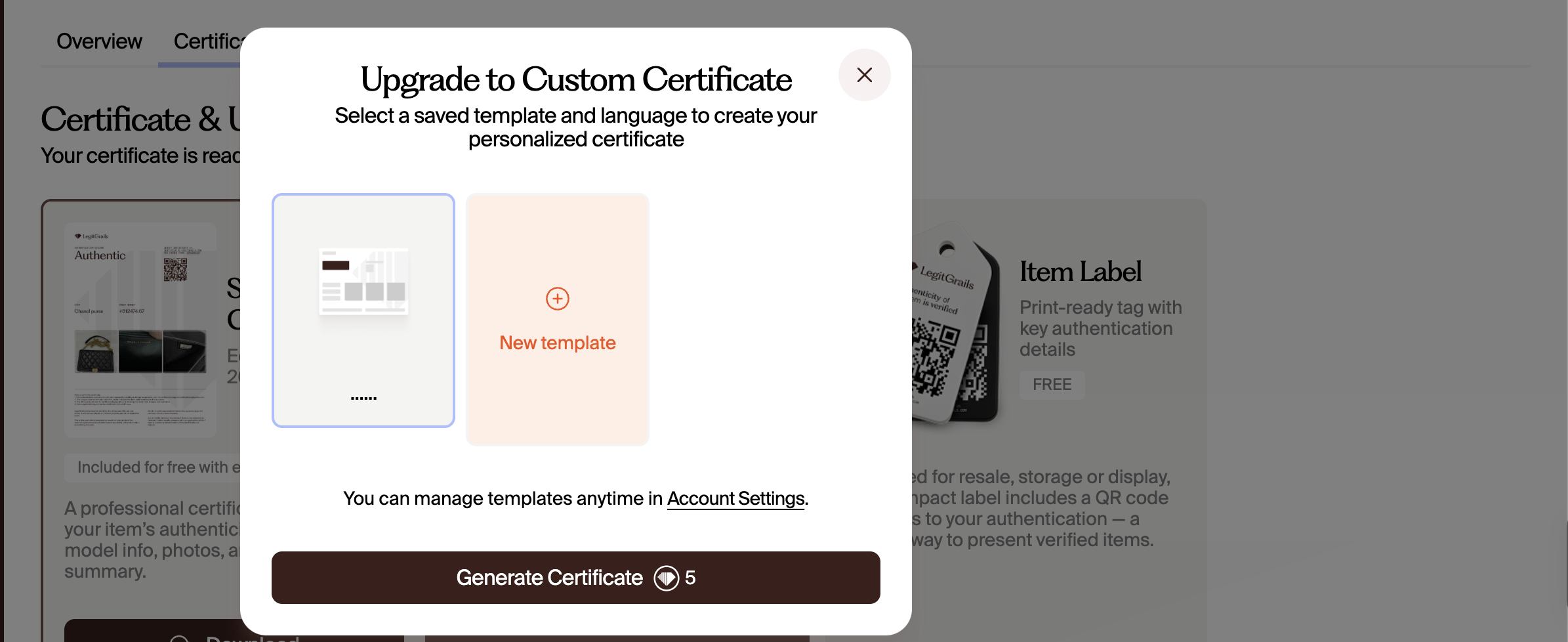
Your new template carrying your logo is now available. Kindly select it and proceed with generating a custom certificate for 5 credits.
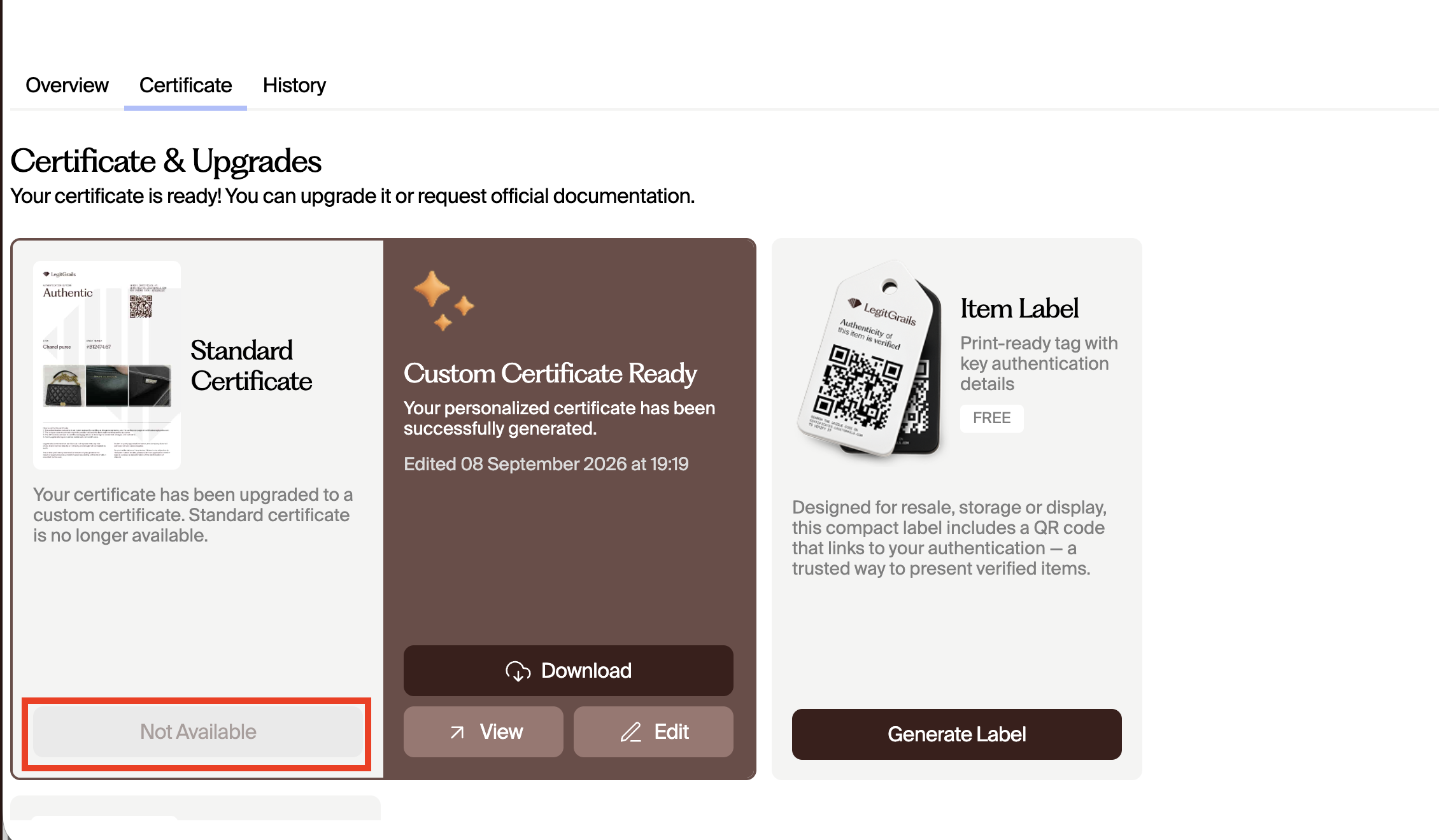
Once this is done, the standard certificate is no longer available, but the custom one is now available for download.
Need Help?
If you encounter any issues with certificate customisation, don’t hesitate to reach out to our support team. You can do this by pressing the Support button in the bottom right corner or by sending an email to support@legitgrails.com